CUPS 打印服务器
CUPS (Common Unix Printing System) 是一款适用于类 Unix 系统的开源打印系统。通过搭建 CUPS 服务器,可以将本地连接的打印机转化为网络共享打印机,使得局域网内的 Windows、macOS 及移动设备能够通过 IPP (Internet Printing Protocol) 协议直接进行打印,从而免去每台电脑重复安装驱动的繁琐过程。
2. CUPS 服务环境搭建
Section titled “2. CUPS 服务环境搭建”以下以 Ubuntu 22.04 为例进行说明。
2.1. 安装 CUPS
Section titled “2.1. 安装 CUPS”sudo apt updatesudo apt install cups2.2. 核心权限配置
Section titled “2.2. 核心权限配置”编辑 /etc/cups/cupsd.conf 以开启 Web 管理界面并放宽访问限制:
# 监听所有网口Listen 0.0.0.0:631WebInterface Yes
# 允许外部访问管理页面<Location />  Order allow,deny  Allow all</Location>
<Location /admin>  Order allow,deny  Allow all</Location>
# 配置文件修改权限(需验证系统用户)<Location /admin/conf>AuthType DefaultRequire user @SYSTEMOrder allow, denyAllow all</Location>
# Restrict access to log files...<Location /admin/log>AuthType DefaultRequire user @SYSTEMOrder allow, denyAllow all</Location>
2.3. 重启服务
Section titled “2.3. 重启服务”sudo systemctl restart cups3. 打印机驱动安装 (以 Canon E560 为例)
Section titled “3. 打印机驱动安装 (以 Canon E560 为例)”-
从官方下载 Linux 驱动包(如
.deb格式)。 -
解压并运行安装脚本:
Terminal window # 从该链接 https://in.canon/en/support/0100588502?model = 8992B 下载对应驱动,并 且上传到/opt/software/printer/canon_e560 下tar -zxvf cnijfilter-e560series-4.10-1-deb.tar.gzsudo ./install.sh -
按照提示完成驱动注册。
4. 注册与共享
Section titled “4. 注册与共享”4.1. Web 界面注册
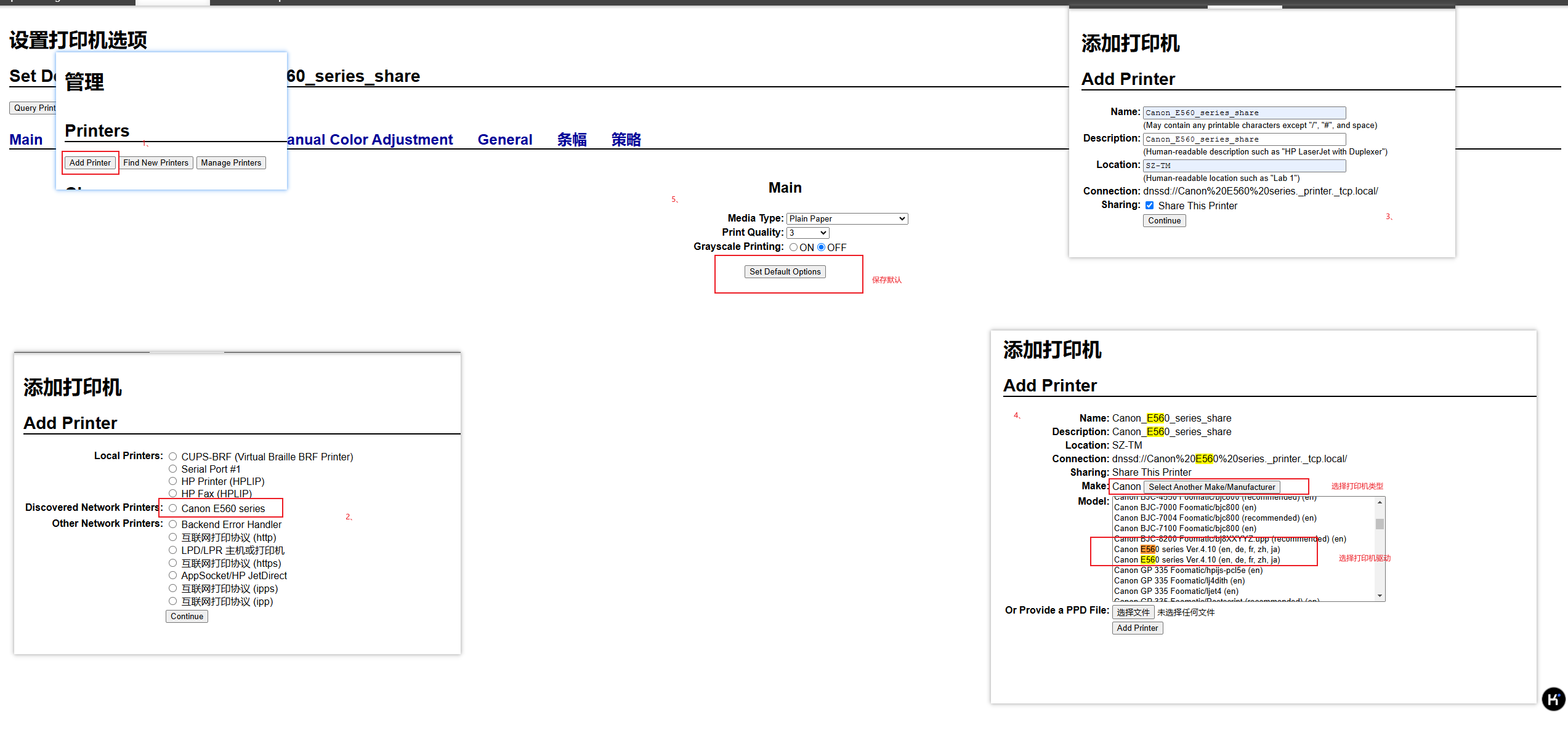
Section titled “4.1. Web 界面注册”访问 http://<服务器IP>:631/admin(使用系统用户名密码登录):
- 点击 Add Printer。
- CUPS 通常会自动识别已通过 USB 连接并安装好驱动的打印机。
- 设置共享名称(如
E560_Share)。

- 如果没有正常识别正手动注册
5. 客户端连接配置
Section titled “5. 客户端连接配置”5.1. Windows 配置
Section titled “5.1. Windows 配置”- 打开“设置” -> “打印机和扫描仪” -> “添加设备”。
- 选择“我需要的打印机不在列表中”。
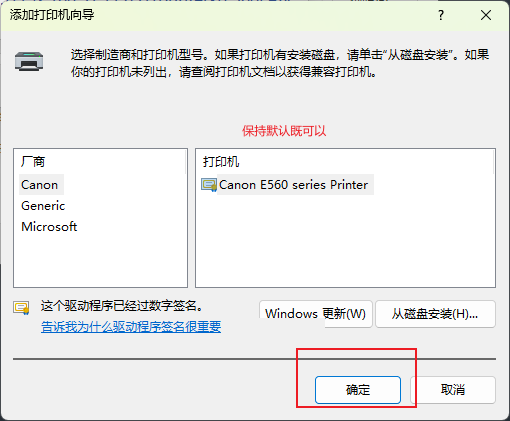
- 选择“按名称选择共享打印机”,输入地址:
http://<服务器IP>:631/printers/E560_Share - 驱动程序选择“通用 (Generic)” -> “MS Publisher Imagesetter” 或对应的 PCL 驱动即可。
5.2. macOS 配置
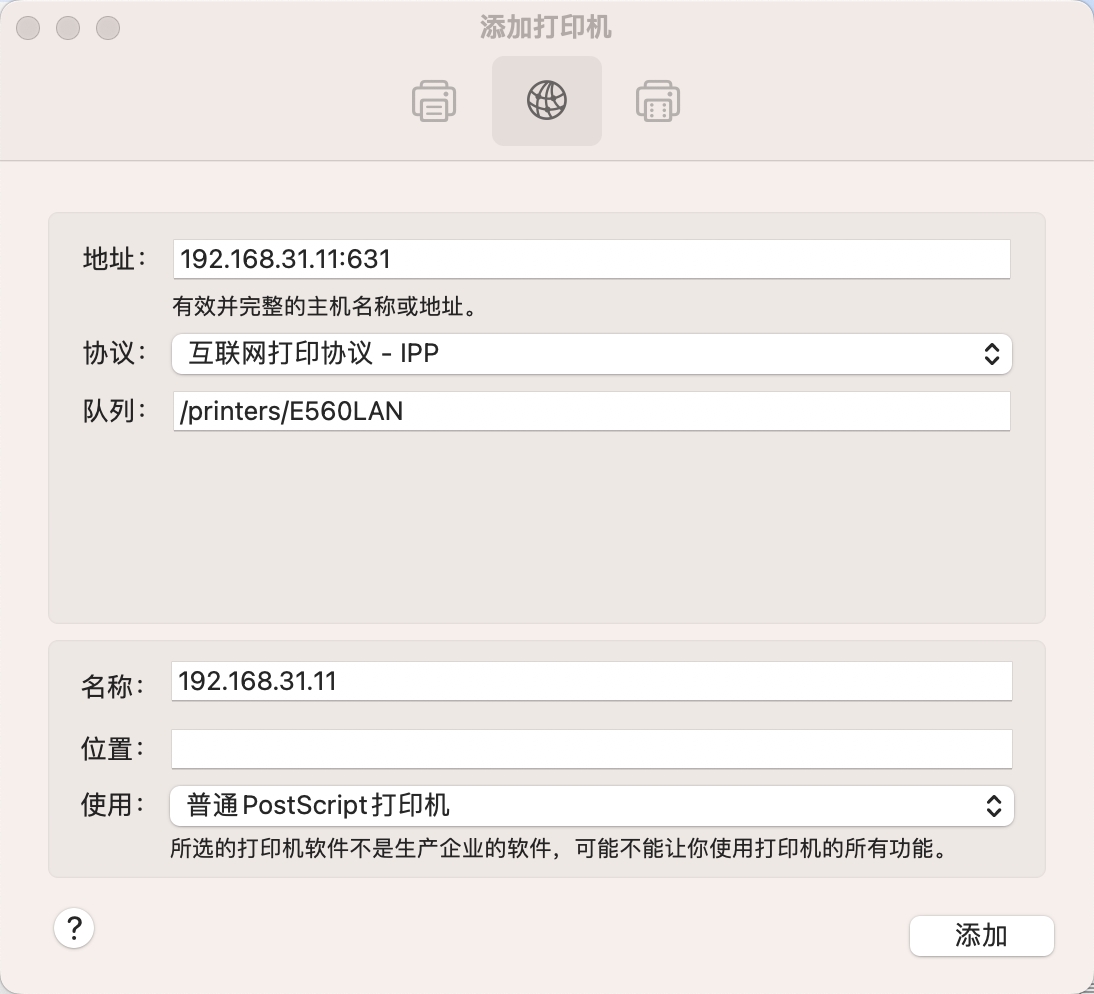
Section titled “5.2. macOS 配置”- “系统设置” -> “打印机与扫描仪” -> “添加打印机”。
- 选择 IP 标签:
- 地址:
<服务器IP>:631 - 协议:IPP (Internet Printing Protocol)
- 队列:
/printers/E560_Share - 使用:普通 PCL 打印机 或 自动选择。
- 地址: